Converting PDFs
How to Convert a PDF to an Editable PowerPoint Deck
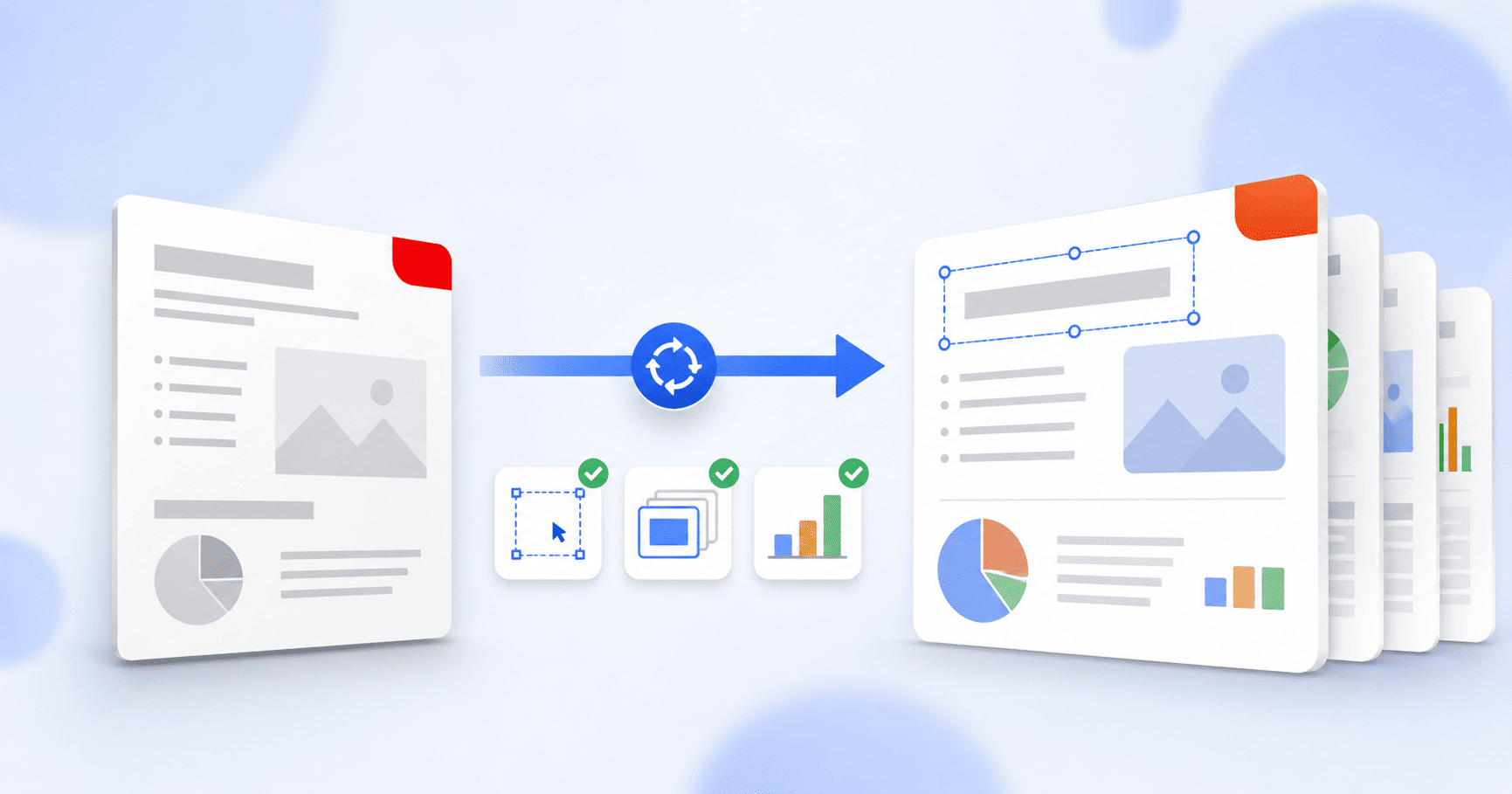
To convert a PDF to PowerPoint, upload your PDF to a PDF-to-PowerPoint converter, run the conversion, and download an editable .pptx. Each PDF page becomes one slide, so you get a deck you can open in PowerPoint and edit rather than a flat document. This works best when the PDF was originally a presentation, and this guide walks through the conversion and what to check so the slides come out usable.
Updated August 27, 2026 · 6 min read
Here's the situation almost everyone is in when they need this: someone sent you a slide deck as a PDF, or you exported one to PDF ages ago and the original file is long gone. Now you need to change a slide, and you're staring at a flat document you can't edit. Rebuilding the whole deck by hand is the last thing you want to do.
Converting the PDF back to PowerPoint gives you an editable .pptx again. This guide covers how to do it, and just as importantly, what to expect from the result so you're not surprised.
What you're really doing: un-flattening a deck
It helps to understand what a PDF-to-PowerPoint conversion actually is. Most PDFs people convert to PowerPoint began life as PowerPoint. Someone built a deck and exported it to PDF to share it, which flattened the editable slides into fixed pages. Converting back is an attempt to reverse that flattening, and how well it goes depends mostly on what the PDF started as.
- If the PDF was exported from a presentation, its pages are already the right shape (16:9 or 4:3) and it converts into a clean, presentation-shaped deck.
- If the PDF is a report or document (A4 or Letter), its pages are tall and portrait, so every slide comes out tall and portrait too. That's not a bug, the converter is faithfully turning each page into a slide.
Converting your PDF to PowerPoint, step by step
- 1
Open the PDF to PowerPoint tool
Go to the PDF to PowerPoint converter. It runs in your browser, with no installation, no login and no watermark on the result.
- 2
Add your PDF
Click Select PDF files or drag your PDF onto the page. You can queue more than one if you have several to convert.
- 3
Choose your conversion option
Pick the conversion that fits your file. For a deck you want to keep looking like the original, the Premium option does the most to preserve the layout. Optionally, name the output file.
- 4
Convert
Click Convert PDF to PowerPoint and wait a few seconds while each page is turned into a slide.
- 5
Download your PPTX
Download the finished .pptx and open it in PowerPoint, Google Slides or Keynote, ready to edit.
What to check in the converted deck
Open the result in PowerPoint and page through it before you rely on it. A conversion is rarely pixel-perfect, and knowing where to look saves you from a surprise mid-presentation:
- Is each slide the right shape, or did a portrait PDF give you portrait slides you need to reshape?
- Did text land as editable text boxes you can retype, rather than as flattened images?
- Are the fonts close to the original, or did some fall back to a default?
- Did any paragraph get split awkwardly across text boxes?
- Are images and charts in roughly the right positions?
Small fixes are quick now that the deck is editable, which is the entire reason for converting. That's the difference between a .pptx and the PDF you started with.
When formatting really has to survive
If your deck is design-heavy and you need the layout to come through as intact as possible, the choice of conversion option matters most. There's a dedicated walkthrough on converting PDF to PowerPoint without losing formatting that goes deep on page proportions, split text and what to expect from complex slides. If formatting fidelity is your priority, read that alongside this guide.
A note on scanned PDFs
One case behaves differently: a scanned PDF. A scan is an image of a page, so there's no real text to place into editable text boxes, and you'll get slides made of pictures you can't retype. If you need editable text from a scan, run it through OCR first to recognise the text, then convert the result.
The short version
Converting a PDF to PowerPoint turns a flat document back into an editable deck, one slide per page. It works best when the PDF came from a presentation to begin with; a portrait report will give you portrait slides you may want to reshape. Convert, then page through the result and fix anything small directly in PowerPoint. For scanned files, run OCR first so the text comes through editable.
Frequently asked questions
How do I convert a PDF to PowerPoint?
Open a PDF-to-PowerPoint converter, add your PDF, run the conversion, and download the .pptx. On PDFEquips' PDF to PowerPoint tool this runs in your browser with no login and no watermark. Each PDF page becomes one editable slide you can open in PowerPoint, Google Slides or Keynote.
Will the converted PowerPoint be editable?
Yes. The output is a standard .pptx you can edit like any other deck: change the text, move elements and update images. How cleanly the text comes through as editable boxes depends on the original PDF, so it's worth paging through the result once.
Why are my slides tall and portrait instead of widescreen?
Because a converter turns each PDF page into one slide, and it inherits that page's shape. If your PDF was an A4 or Letter document, its pages are portrait, so the slides are too. You can reshape the deck afterward in PowerPoint under Design and Slide Size, though content will need repositioning.
Can I convert a scanned PDF to PowerPoint?
Not directly into editable slides. A scan is an image with no real text, so you'd get slides made of pictures. Run the scan through OCR first to turn the image into recognised text, then convert the result to PowerPoint.
What's the difference between PPT and PPTX?
PPTX is the modern PowerPoint format used by current versions of PowerPoint, Google Slides and Keynote; PPT is the older legacy format. A conversion today produces PPTX, which is what you want for editing in any current app.
Do I need to install anything?
No. The PDF to PowerPoint converter runs entirely in your browser, with nothing to download and no account required to start.