Converting PDFs
How to Convert a PDF to Word Without Losing the Formatting
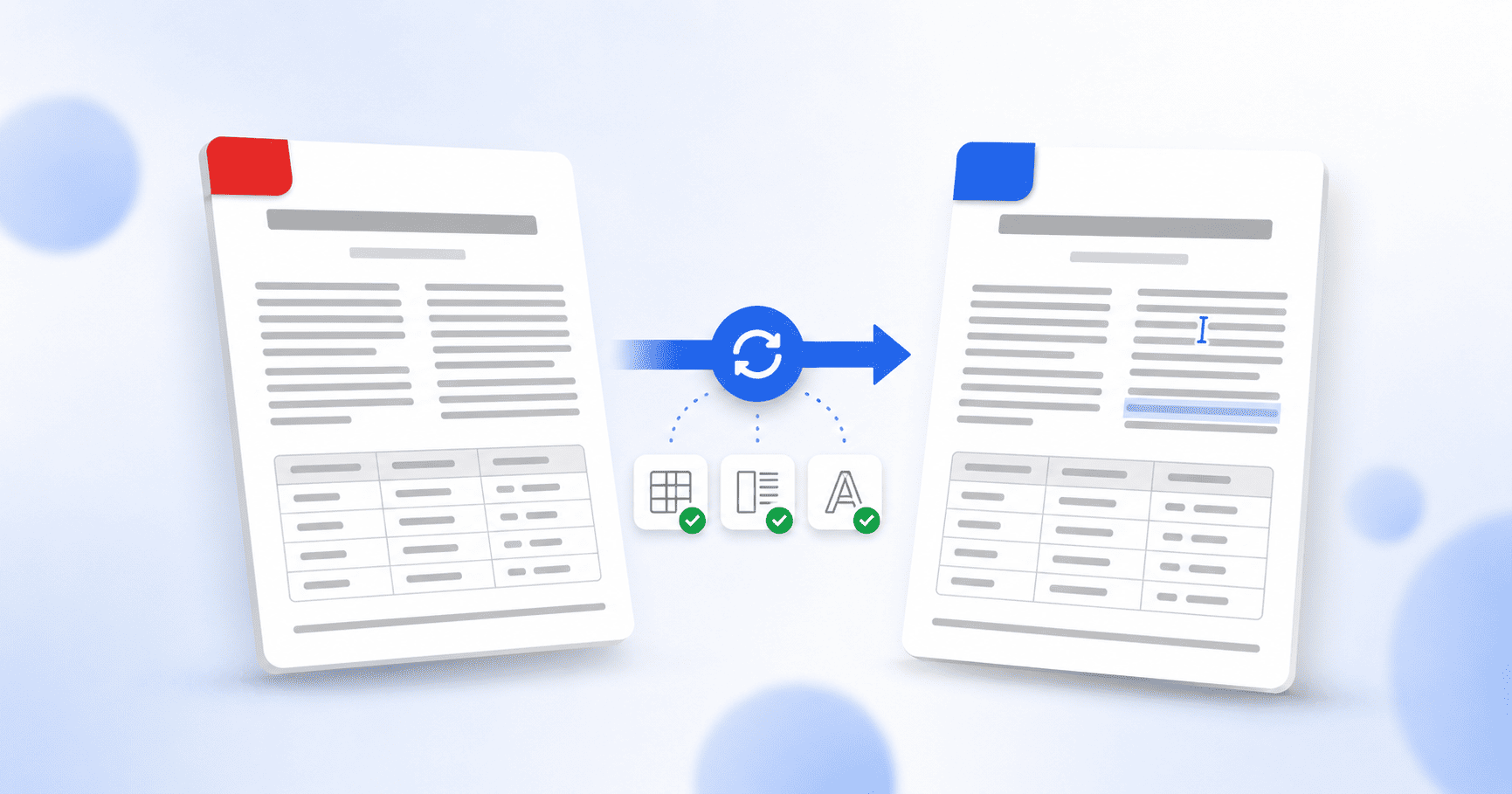
To convert a PDF to Word without losing formatting, use a layout-aware converter that rebuilds the document's structure rather than dumping the text into a blank page. Open your PDF in a PDF-to-Word tool, choose the formatting-preserving option, convert, and download an editable .docx. This keeps fonts, tables, images and columns in place, so you get a Word file you can actually edit instead of one you have to rebuild.
Updated August 25, 2026 · 7 min read
You need to edit a PDF, so you convert it to Word. What comes back is technically editable and completely unusable: the tidy table is now a scatter of loose text, the two columns have collapsed into one, the headings look like body text, and the fonts have all reset to something generic. Now you're rebuilding the document by hand, which takes longer than retyping it would have.
It doesn't have to go that way. The formatting survives when you use the right kind of converter and understand the one setting that actually matters. Here's how.
Why converting a PDF to Word breaks the layout
A PDF and a Word file are built on opposite ideas. A Word document is reflowable: it stores content as a stream of paragraphs, tables and styles, and lets the layout arrange itself. A PDF is fixed: it stores where each piece of text sits on the page as a set of coordinates, with no reliable notion of "this is a paragraph" or "this is column two."
So converting one to the other isn't a simple translation. The converter has to look at the positions on the page and infer the structure: which lines form a paragraph, which boxes make up a table, where one column ends and the next begins. When that guesswork is even slightly off, the layout comes apart. This is why the same file can convert perfectly in one tool and turn to soup in another.
The setting that decides everything: Basic vs Premium
Most converters offer a fast, simple mode and a more careful one, and the difference between them is exactly the formatting you care about. On PDFEquips' PDF to Word tool, that choice is spelled out plainly as Basic and Premium.
- Basic does a quick conversion with limited formatting. It's the right pick when you just need the text out of a simple, text-only PDF and you don't care whether the layout matches.
- Premium is the layout-aware conversion. It works to preserve the original fonts, tables, images and structure, so the Word file opens looking like the PDF. This is the one you want whenever the document has any real formatting to protect.
If you remember one thing from this guide, make it this: for anything with tables, columns or a design you need to keep, choose the formatting-preserving option. The speed difference is small; the difference in how much cleanup you do afterward is enormous.
Converting your PDF, step by step
- 1
Open the PDF to Word tool
Go to the PDF to Word converter. It runs in your browser, so there's nothing to install and no account needed to start.
- 2
Add your PDF
Click Select PDF files, or drag your file straight onto the page. You can add more than one PDF if you have a batch to convert.
- 3
Choose the Premium option
Pick Premium for a layout-preserving conversion. This is what keeps your fonts, tables and columns intact. Optionally, type a name for the output file.
- 4
Convert
Click Convert to Word and let the tool process the file. A more complex document takes a little longer, since there's more structure to reconstruct.
- 5
Download your editable Word file
Download the finished .docx. It opens in Microsoft Word, Google Docs and other word processors, ready to edit.
Converting a scanned PDF is a different job
There's one case where even the best converter will hand you an uneditable result: a scanned PDF. A scan isn't text at all, it's a photograph of a page. There are no letters in the file for a converter to move into Word, just an image. Run it through a normal PDF-to-Word conversion and Word treats the whole page as a picture you can't edit.
The missing step is OCR, or optical character recognition, which reads the text off the image and turns it into real, selectable characters. Once a scan has been through OCR, it converts to Word like any ordinary PDF. If your file is scanned, run it through OCR first, then convert the result.
A quick check before you rely on the file
Even a good conversion deserves a thirty-second review, especially before you send the document to someone. Open the Word file next to the original PDF and check the parts most likely to shift:
- Do the tables still have their rows and columns, with the right text in each cell?
- Did any two-column or multi-column sections stay in their columns?
- Are the headers, footers and page numbers still there?
- Do the fonts and heading styles match, or did anything fall back to a default?
- Are the images in the right places, with nothing overlapping the text?
Anything small that slipped is now easy to fix directly in Word, which is the whole point of having an editable file. Catching it now takes a moment; catching it after someone else does is a lot more costly.
The short version
Converting a PDF to Word breaks formatting because a PDF stores where text sits, not what it means, so the converter has to rebuild the structure from scratch. Use a layout-aware converter, choose the formatting-preserving option, and run scanned files through OCR first. Do that, and you get a genuinely editable Word document that still looks like the PDF you started with.
Frequently asked questions
How do I convert a PDF to Word without losing formatting?
Use a converter that preserves layout rather than dumping the text into a blank page, and choose its formatting-preserving option. On PDFEquips' PDF to Word tool, that means selecting Premium instead of Basic. Premium keeps fonts, tables, images and columns in place, so the Word file opens looking like the original PDF.
Will the converted Word file be editable?
Yes. The output is a standard .docx that opens in Microsoft Word, Google Docs and most other word processors. You can edit the text, tables and images directly, which is usually the reason for converting in the first place.
Why does my converted Word document look broken?
Because a PDF stores the position of text on the page rather than its structure, so the converter has to guess where paragraphs, tables and columns are. When that guess is off, the layout breaks. Using a layout-aware conversion (the Premium option) gives the converter the best chance of rebuilding the structure correctly.
Can I convert a scanned PDF to Word?
Not directly. A scanned PDF is an image, so there's no text for the converter to move into Word, and you'd get an uneditable picture. Run the scan through OCR first to turn the image into real text, then convert that result to Word.
Do I need to install any software?
No. The PDF to Word converter runs in your browser. There's nothing to download and no account required to start converting.
Can I convert more than one PDF at a time?
Yes. You can add several PDF files and convert them in one go, rather than doing each one separately.