Getting started
How to Use PDFSimplified: A Complete Walkthrough
PDFSimplified lets you edit a PDF directly in your browser — click any line of text and retype it, drop in images, draw on the page, and rearrange pages. Open pdfsimplified.com/edit-pdf, choose your file, and start editing. Everything you change is visible on the page as you change it, and an AI assistant can rephrase, summarize, or translate any element you select.
Updated July 10, 2026 · 7 min read
What PDFSimplified does
PDFs are usually locked — you can read them, but changing a single typo means going back to whoever made the original. PDFSimplified removes that step. You open your file, click the thing you want to change, and change it. There's nothing to install and nothing to configure.
There are two ways in. If you already have a document, use Edit PDF. If you're starting from nothing, use Create PDF.
| I want to… | Go to |
|---|---|
| Change an existing PDF | Edit PDF |
| Build a PDF from a blank page | Create PDF |
Opening your file
- 1
Go to the editor
Open pdfsimplified.com/edit-pdf in your browser.
- 2
Choose your PDF
Click the Select PDF files button and pick the document from your computer.
- 3
Wait for it to load
Your document appears in the editor, page by page, exactly as it looks now.
Finding your way around
The editor has two parts. Down the left is the toolbar — everything you can add or change lives here. Filling the rest of the window is the page itself, where you click directly on whatever you want to edit.
The toolbar, one button at a time
File
Rename your document, save your progress, start a new design, or download the finished PDF. Save keeps your work in the editor; Download puts the file on your computer.
Pages
Shows every page as a small thumbnail. From here you can:
- Move a page up or down with the arrow buttons
- Delete a page you don't need
- Add a fresh blank page
- Open the page manager from the more-options button on any thumbnail
The page manager also holds AI Edit, which works on a whole page at once rather than a single element — useful for something like translating an entire page in one go.
Text
Add new text anywhere on the page. Pick from a range of sizes and styles, or use one of the ready-made font combinations if you'd rather not choose.
Shapes
Drop in circles, lines, boxes and other ready-made shapes — handy for boxing off a section or underlining something by hand.
Uploads
Place an image into your PDF. Choose a picture from your computer and drag it wherever it belongs.
Draw
Draw freehand. Three brushes: pen for clean lines, highlighter for marking passages, and eraser for undoing strokes. Every brush has its own sizes and colours.
Styling what you've selected
Click any element on the page and a bar of controls appears across the top. From left to right you'll find everything you'd expect from a word processor:
- Font and size — typeface, plus the plus/minus buttons to size it
- Colour — text colour and background colour
- Emphasis — bold, italic, underline, strikethrough
- Letter case — switch between uppercase, lowercase and title case
- Alignment and lists — left, centre, right; bulleted or numbered
- Spacing — the gap between lines, and between letters
- Transparency — fade an element in or out
- Text direction — for right-to-left languages like Arabic or Hebrew
- Add a link — turn text into a clickable link
- Download — save the PDF without leaving the bar
Letting AI do the work
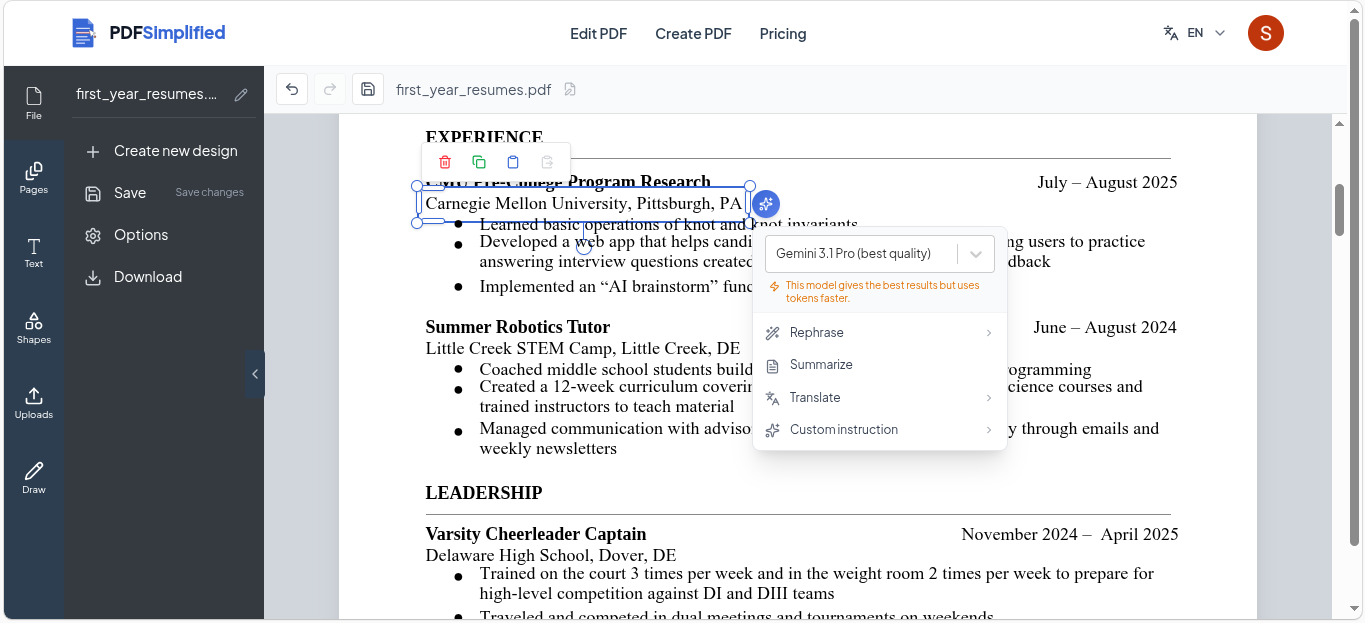
Whenever you select something, a small blue button appears next to it. Click it and you can hand that piece of text to an AI assistant. First choose which model to use — the editor tells you what each one is good at — then pick what you want done:
- Rephrase — rewrite it in a different tone
- Summarize — condense a long passage
- Translate — put it into another language
- Custom instruction — describe anything else in your own words
A worked example: fixing up a résumé
- 1
Open the résumé
Go to Edit PDF, click Select PDF files, and load your existing résumé.
- 2
Fix the job title
Click the line under your name and retype it. The rest of the page stays exactly where it is.
- 3
Tighten the summary
Select the summary paragraph, click the blue AI button, and choose Rephrase — then pick a more confident tone.
- 4
Make a translated copy
Open the Pages panel, hit more options on the page, choose AI Edit, and translate the whole page at once.
- 5
Save it
Open the File panel and click Download.
Frequently asked questions
Do I need to install anything?
No. PDFSimplified runs entirely in your browser. Open pdfsimplified.com/edit-pdf, select your file, and you're editing.
Does editing change my original file?
No. The copy on your computer is untouched. Your changes only exist inside the editor until you click Download, which saves a new file.
Can I edit a scanned PDF?
A scanned page is a photograph of a document, so there is no text to click on. You can still draw on it, add new text boxes over it, and insert images — but you cannot retype what's in the scan itself.
Can I start a PDF from nothing?
Yes. Go to pdfsimplified.com/create-pdf instead of the edit page, and you'll get a blank page with the same toolbar.
How do I change text in a right-to-left language?
Select the text, then use the text direction button in the styling bar at the top. Arabic, Hebrew and other right-to-left scripts will flow correctly.
What's the difference between Save and Download?
Save keeps your work in the editor so you can come back to it. Download writes a finished PDF file to your computer.