Converting PDFs
How to Convert a PDF to RTF (Rich Text Format)
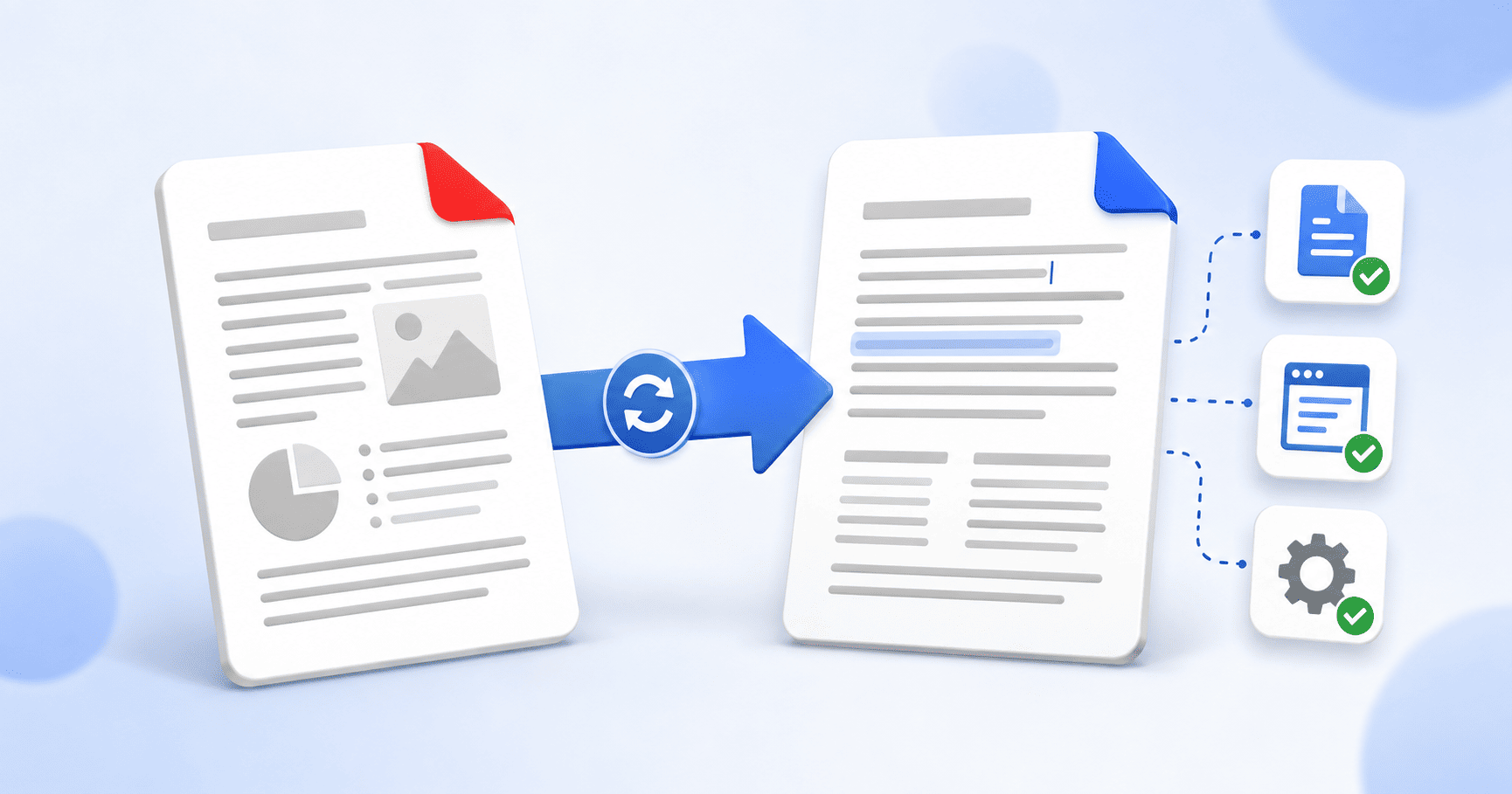
To convert a PDF to RTF, upload your PDF to a PDF-to-RTF converter, run the conversion, and download the .rtf file. RTF is a universal rich-text format that opens in virtually any word processor on Windows, Mac or Linux, which makes it ideal when compatibility matters. It keeps your text and basic formatting but not images or complex layout, so it's best for text-focused documents. This guide covers the conversion and when RTF is the right choice.
Updated August 29, 2026 · 6 min read
RTF is the format you reach for when you need a document that will open anywhere, no matter what word processor or operating system is on the other end. Converting a PDF to RTF gives you editable text you can hand to almost anyone with confidence that they'll be able to open and edit it. The trade-off is worth understanding before you start, and this guide covers both the how and the when.
What RTF is, and why you'd want it
RTF, or Rich Text Format, is a document format designed to be read by almost any word processor. It stores text along with basic formatting like bold, italics, fonts and paragraph structure, and it does so in a way that Microsoft Word, Google Docs, LibreOffice, Apple Pages and countless smaller editors all understand. That universal readability is its whole reason for existing.
- It opens anywhere: Windows, Mac, Linux, and virtually every word processor, past or present.
- It's editable: unlike a PDF, the text is real, editable text you can change freely.
- It's lightweight: because it holds text rather than images, RTF files are small and easy to share.
- It's stable: a simple, long-established format that's unlikely to break or need special software.
The one thing to know first: RTF is text, not layout
Here's the part most converters don't tell you plainly, and it's the most important thing on this page. RTF is built to carry formatted text, not full page design. It handles fonts, bold, italics, paragraphs and basic structure well. It does not carry images, charts, diagrams or intricate multi-column layouts the way a Word file does.
RTF or Word? How to choose
Because RTF and Word overlap, it helps to know which to pick. The short version: choose RTF for maximum compatibility on text-focused documents, and Word when you need images and full layout.
| Choose RTF when | Choose Word when |
|---|---|
| The document is mostly text (letters, notes, articles) | The document has images, charts or diagrams to keep |
| You need it to open on any system or older software | You need the exact layout and design preserved |
| You want a small, portable, no-fuss file | You're working in a modern Office or Docs workflow |
| You're not sure what software the recipient has | You know the recipient uses Word or Google Docs |
If it turns out you need images and full layout after all, convert to Word (DOCX) instead, which preserves far more of the original document's design.
Converting your PDF to RTF, step by step
- 1
Open the PDF to RTF tool
Go to the PDF to RTF converter. It runs in your browser, with no installation and no account needed to start.
- 2
Add your PDF
Click Select PDF files or drag your PDF onto the page. You can add more than one if you have a batch to convert.
- 3
Run the conversion
Choose your conversion option and click Convert to RTF. Optionally, name the output file first.
- 4
Download your RTF
Download the finished .rtf file. It opens in Word, Google Docs, LibreOffice, Pages and effectively any other word processor.
A note on scanned PDFs
Since RTF is all about text, a scanned PDF is a special case. A scan is an image of a page with no real text in it, so converting it to RTF gives you nothing to edit. To get editable text from a scan, run it through OCR first to recognise the text, then convert the result to RTF. To check whether your PDF is scanned, try to select a line of text with your cursor; if nothing highlights, it needs OCR.
The short version
RTF is the go-to format when you need editable text that opens anywhere, on any system, in almost any word processor. Converting a PDF to RTF gives you exactly that: clean, editable text with its basic formatting intact. Just remember RTF carries text, not images or complex layout, so it's best for text-focused documents. When you need the full design, convert to Word instead, and for scanned files, run OCR first.
Frequently asked questions
How do I convert a PDF to RTF?
Open a PDF-to-RTF converter, add your PDF, run the conversion, and download the .rtf file. On PDFEquips' PDF to RTF tool this runs in your browser with no account needed. The result opens in Word, Google Docs, LibreOffice, Pages and virtually any other word processor.
What is an RTF file used for?
RTF (Rich Text Format) is used when a document needs to open on almost any system or word processor. It carries text and basic formatting in a widely readable, lightweight format, which makes it ideal for sharing editable text when you're not sure what software the recipient has.
Does converting a PDF to RTF keep images?
Generally no. RTF is designed to carry formatted text, not images, charts or complex layout, so those are usually simplified or dropped in conversion. If you need to keep images and full design, convert the PDF to Word (DOCX) instead.
Should I convert my PDF to RTF or Word?
Choose RTF for text-focused documents that need to open anywhere, on any system or older software, in a small portable file. Choose Word when the document has images or a layout you need to preserve, or when you know the recipient uses Word or Google Docs.
Can I convert a scanned PDF to RTF?
Not directly. A scanned PDF is an image with no real text, so there's nothing for RTF to carry. Run the scan through OCR first to turn the image into recognised text, then convert that result to RTF.
Do I need to install any software?
No. The PDF to RTF converter runs entirely in your browser, with nothing to download and no account required to start.