How to Make a PDF Look Scanned (the Simple Way)

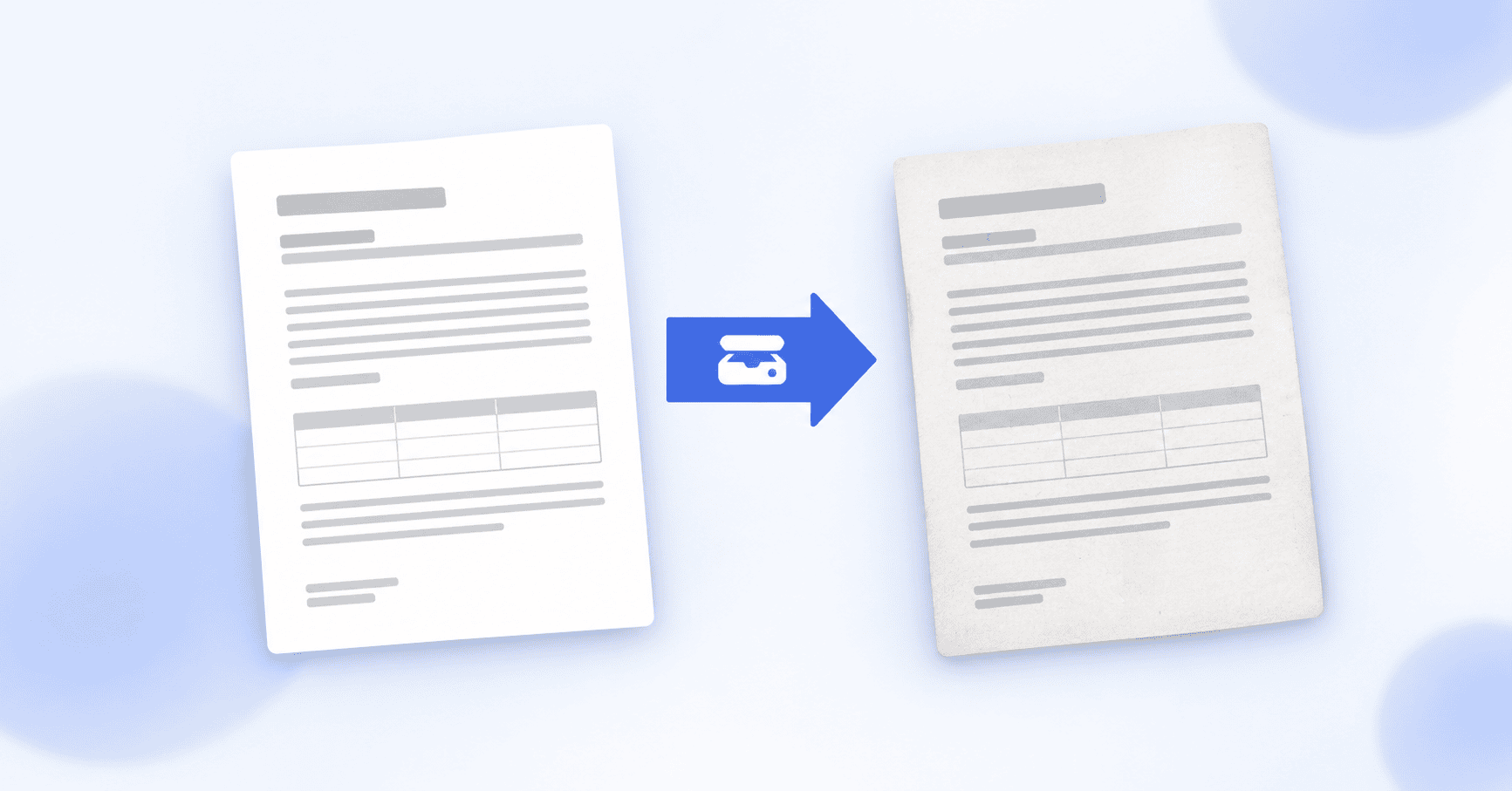
A digital PDF looks too clean. The text is razor-sharp, the background is pure white, and every edge is perfectly straight. A document that has been printed and run through a scanner looks different: slightly gray, a little grainy, usually tilted by a fraction of a degree, with the soft imperfection that real paper and real scanners introduce. Sometimes you need a PDF to have that look, and this explains how to get it, why it works, and the one case where you should stop and think first.
Why anyone would want this
It sounds odd to deliberately make a clean file look worse, but there are good reasons people do it.
The most common one is a submission portal that asks for a "printed, signed, and scanned" copy of a document. Plenty of these systems reject a file that looks too pristine, or simply expect the texture of a scan, and printing a document only to scan it straight back in is a waste of time and a printer you may not have. A scanner effect gets you the expected look without the round trip.
There are others. Designers, game makers, and filmmakers need "found document" props that read as aged paper. Anyone building or testing document software needs scan-like files to check how their OCR or parsing holds up against imperfect input. And if you are assembling a packet where some pages are genuine scans and others are clean exports, running the clean ones through a scanner effect makes the whole thing look consistent instead of obviously mixed.
What actually makes a scan look like a scan
A convincing scanner effect is not one thing but a few small imperfections layered together. Understanding them helps you judge whether a result looks right.
- Grayscale or a slight color cast. Most scans are not pure black on pure white. They pick up a faint gray or sepia tone from the paper and the scanner's light.
- A touch of noise or grain. Scanners introduce fine speckle across the page. A little reads as real; too much reads as a filter.
- A tiny rotation. Paper almost never sits perfectly square on the glass, so real scans are tilted by a fraction of a degree. This single detail does more for realism than any other.
- Softened sharpness. The crisp vector edges of digital text get very slightly blurred as they become an image.
- Flattened to an image. A real scan has no selectable text, because it is a picture of a page. A believable fake is the same: the page becomes an image rather than live text.
That last point is the big structural change. Making a PDF look scanned means turning each page from sharp, selectable text into a flat image, then adding the imperfections above. It is the reverse of what a converter does when it tries to pull editable text out of a document.
The simple way to do it
You can reproduce all of this by hand in an image editor: rasterize each page, drop the color to grayscale, add a noise filter, nudge the rotation, and lower the sharpness. It works, but it is fiddly and slow, especially across more than a page or two.
The quicker path is a tool built for it. PDFSimplified has a PDF to scanned tool that applies the whole effect in the browser: load your PDF, let it add the grayscale, grain, and slight tilt, and download a version that reads as scanned. There is nothing to install, and because it runs in your browser, the file is not sent off to a server.
Whichever route you take, the thing to tune is the noise. A light amount sells the effect; pushing it too far tips the result from "scanned" into "obviously filtered," which fools no one. If the output looks heavy-handed, dial the grain back, and it will read as more natural.
Two things to expect from the result
A scanned-looking PDF behaves differently from the clean one you started with, in two ways worth knowing.
First, the text is no longer selectable. Because every page is now an image, you cannot highlight, copy, or search the text, exactly as with a real scan. If you later need the text back, running the file through OCR will rebuild a selectable text layer on top of the image.
Second, the file is usually larger. Fine grain does not compress well, so a page that was small as crisp text can grow noticeably once it carries scanner noise. If size matters for an upload, keep the noise modest or compress the file afterward.
When not to do this
This is the part worth being honest about. A scanner effect changes only how a document looks. It does not make the document a genuine scan of a signed paper original, and treating it as one can cross a line.
If a process genuinely requires a wet signature, or proof that a physical, signed original exists, a clean file dressed up to look scanned does not satisfy that requirement, and presenting it as if a paper original existed would be misleading. On official or legal forms, that can amount to misrepresentation. When a real signed original is what is being asked for, the right move is to actually print and sign and scan it, or to ask whether an electronic signature is accepted, which increasingly it is.
Used for what it is good at, making a legitimate document match an expected format, standing in for a prop, or generating test data, a scanner effect is a genuinely handy thing. Used to fake the existence of a paper document that was never signed, it is not. The technique is the same; the honesty of how you use it is what matters.
In short
Making a PDF look scanned means flattening its pages to images and layering on the small imperfections of a real scan: grayscale, light grain, a fraction of a degree of tilt, and slightly softened text. You can do it by hand in an image editor or in one step with a browser tool. Expect the text to stop being selectable and the file to grow a little. And keep it to the honest uses, because the look of a scan is not the same as a signed paper original.