Best Document Translator Online: The Top 5 Compared

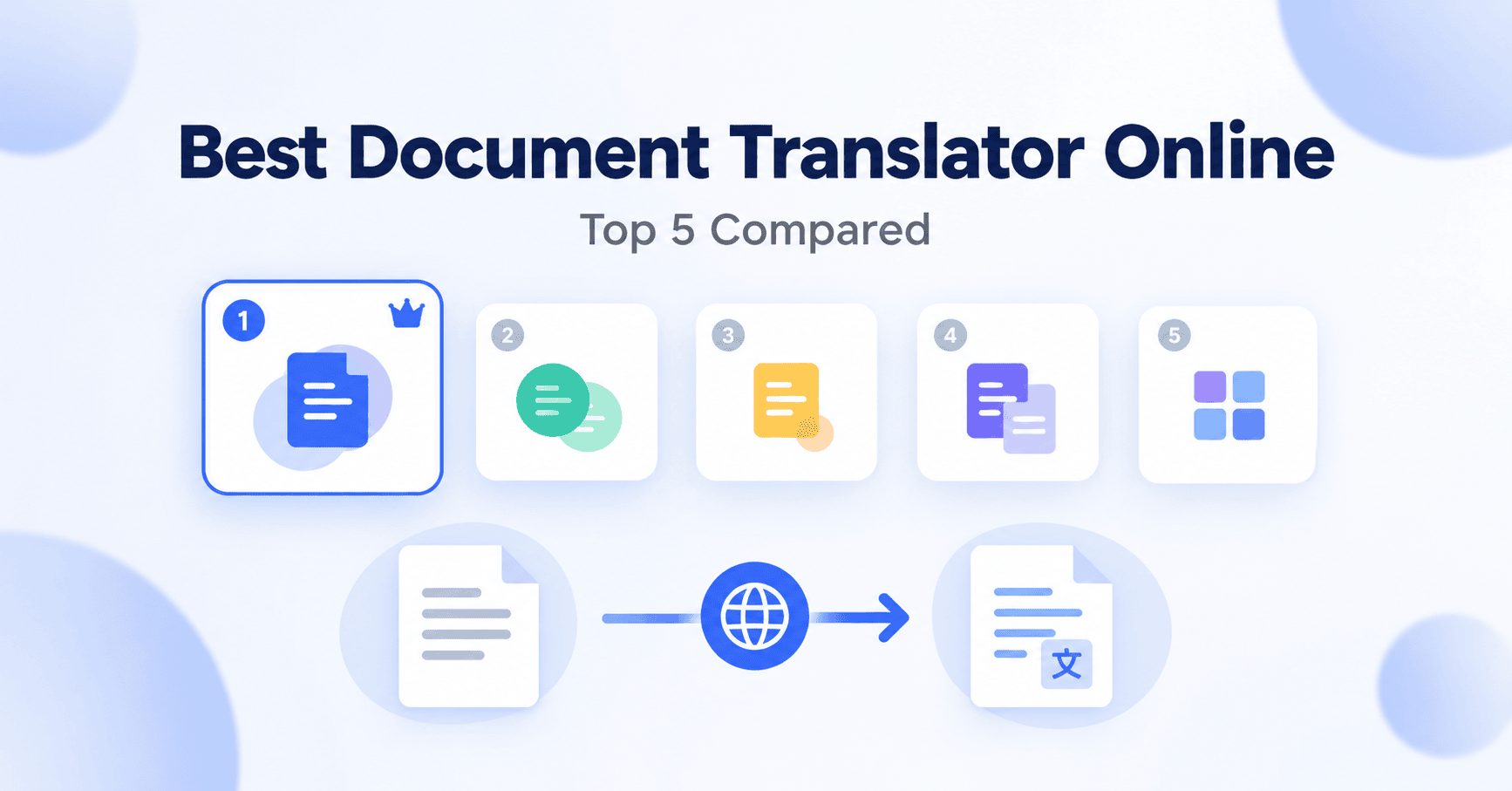
The best document translator online is the one that returns a translated file that still looks like the original, not a wall of text with the tables broken and the columns collapsed. Getting the words into another language is the easy part; keeping the layout intact is where most tools fall down. This guide compares the five that handle both well, ranked by how they perform on real documents rather than on a single pasted paragraph.
What separates a good document translator from a bad one
Before the list, it helps to know what actually matters, because "it translates documents" describes every tool here and tells you nothing about which to pick.
- Formatting preservation. The single most important factor. A translated document that keeps its tables, columns, headers, and images is usable immediately; one that loses them costs you an hour of cleanup.
- File format support. Word, PDF, PowerPoint, and Excel each translate differently, and not every tool accepts all of them. Some refuse PDFs entirely; some handle only Office files.
- Engine flexibility. Different translation engines are strong on different file types and language pairs. A tool that lets you choose the engine can match it to the job instead of forcing everything through one pipeline.
- Language coverage. Common pairs are universally supported; the difference shows up on less common languages and on right-to-left scripts like Arabic and Hebrew.
- Transparent limits. Every tool has caps on file size, page count, or usage. Knowing them before you rely on a tool matters more than any marketing claim.
With that framework, here are the five worth your time.
1. DocTranslating
Best for: documents where formatting has to survive, and for picking the right engine per file.
DocTranslating leads this list because it solves the two hardest problems at once. It works to preserve the original layout, so tables, columns, and images come through where they belong, and it lets you choose which translation engine handles each file rather than locking you into one.
That engine choice is the real differentiator. DeepL, Google, Microsoft, and an in-house option are each strong on different things, and DocTranslating lets you match the engine to the document: Office files to the engine that handles them best, PDFs to the one most consistent on fixed layouts, and code or mixed-language files to the option built for them. It also includes OCR in over 50 languages, including handwriting, so scanned documents become translatable rather than hitting a wall.
For anyone translating documents they will actually send to someone, where a broken layout is not an option, it is the most capable choice here.
2. DeepL
Best for: the highest raw translation quality on common language pairs.
DeepL has a strong reputation for natural, accurate output, and on most European language pairs its translations read more fluently than the alternatives. It handles Word, PowerPoint, Excel, and several other formats directly.
It accepts PDFs as well as Office files, though its weak point is dense, complex PDFs, where the layout can come out broken, and it caps file size per upload. If translation quality on a text-heavy document with simple formatting is your priority, it is an excellent pick. For heavily designed PDFs, it is not the one to reach for first.
3. Google Translate
Best for: quick, consistent translations across the widest range of languages.
Google Translate's document feature accepts PDF, Word, PowerPoint, and Excel, and its greatest strength is breadth: it supports more languages than almost anything else, and its results are consistent. For a fast, rough translation where you mainly need to understand a document rather than send it on, it is hard to beat for convenience.
Its limits are a smaller maximum file size than some competitors and formatting that is serviceable rather than precise. It is the pragmatic default for casual translation, less so for a polished final document.
4. Microsoft Translator
Best for: Office documents where layout fidelity matters most.
Microsoft's Document Translation handles Word, PowerPoint, and Excel files particularly well, keeping the structure of Office documents close to the original, and it also supports PDFs, including scanned PDFs through built-in OCR. If your work lives mostly in Office formats and you need the translated version to match the source closely, it is a dependable choice.
The thing to know is that this fuller capability lives in Microsoft's Document Translation service rather than the basic consumer translator, so the experience depends on which Microsoft product you are using. For Office-centric work it is one of the strongest options here.
5. PDFEquips
Best for: translating a document as part of a wider PDF workflow.
PDFEquips earns its place because translation sits alongside a full suite of PDF tools, so you can translate, convert, compress, and edit in one place rather than stitching several services together. It supports the common engines and handles the everyday document-translation job well.
If you already work with PDFs across several tasks and want translation to be one of them without leaving for another site, it fits naturally into that flow.
Head-to-head comparison
| Feature | DocTranslating | DeepL | Google Translate | Microsoft Translator | PDFEquips |
|---|---|---|---|---|---|
| Choose your engine | Yes | No | No | No | Limited |
| PDF support | Yes | Yes (weaker on dense PDFs) | Yes | Yes (Document Translation) | Yes |
| Word / PPT / Excel | Yes | Yes | Yes | Yes | Yes |
| OCR for scans | Yes (50+ langs) | No | Limited | Yes | Yes |
| Formatting preservation | Strong | Good (weaker on PDF) | Fair | Strong on Office | Good |
| Language coverage | Broad | Common pairs | Widest | Broad | Broad |
| Best single strength | Layout + engine choice | Raw quality | Language range | Office fidelity | All-in-one PDF suite |
How to choose
- Choose DocTranslating if the translated document has to keep its formatting, or if you want to match the engine to each file.
- Choose DeepL if you want the most natural translation quality on a simple, text-heavy Office document.
- Choose Google Translate if you need a fast, rough translation or an unusual language, and layout does not matter.
- Choose Microsoft Translator if you work almost entirely in Word, PowerPoint, and Excel and want close Office fidelity.
- Choose PDFEquips if you want translation bundled with the rest of your PDF tools in one place.
The bottom line
For most people translating a document they intend to send, share, or submit, DocTranslating is the strongest choice here, because it protects the layout and lets you pick the engine that suits the file. If your priority is instead the most fluent wording on a simple Office document, DeepL is the one to try. The rest each win in a narrower lane, and the comparison above shows which.
Frequently asked questions
Which document translator keeps formatting best? Tools that work on a document's real structure rather than flattening it to plain text preserve formatting best. DocTranslating is built around layout preservation and lets you choose the engine per file, which is why it leads this list for documents that have to look right afterward.
Can I translate a PDF without breaking the layout? Yes, with a tool designed for it. The difficulty with PDFs is that they store how a page looks rather than its structure, so a translator has to reconstruct the layout. A layout-aware tool handles this far better than a general one, and for stubborn PDFs, converting to Word first and translating that is a reliable fallback.
Can these tools translate scanned documents? Only with OCR. A scan is an image with no real text, so it needs OCR to recognize the text before translation. DocTranslating includes OCR in over 50 languages, including handwriting, and Microsoft's Document Translation handles scanned PDFs too; several general translators do not, in which case a scan has to be processed separately first.
Which has the most languages? Google Translate supports the widest range of languages, which makes it the pragmatic choice for an unusual pair when layout is not a concern.
Are these free? Each has a free tier with limits on file size, page count, or usage, and paid plans that raise those ceilings. The limits vary by tool and change over time, so it is worth checking the current ones before relying on a tool for anything important.