Best Free PDF Tools for Every Common Task

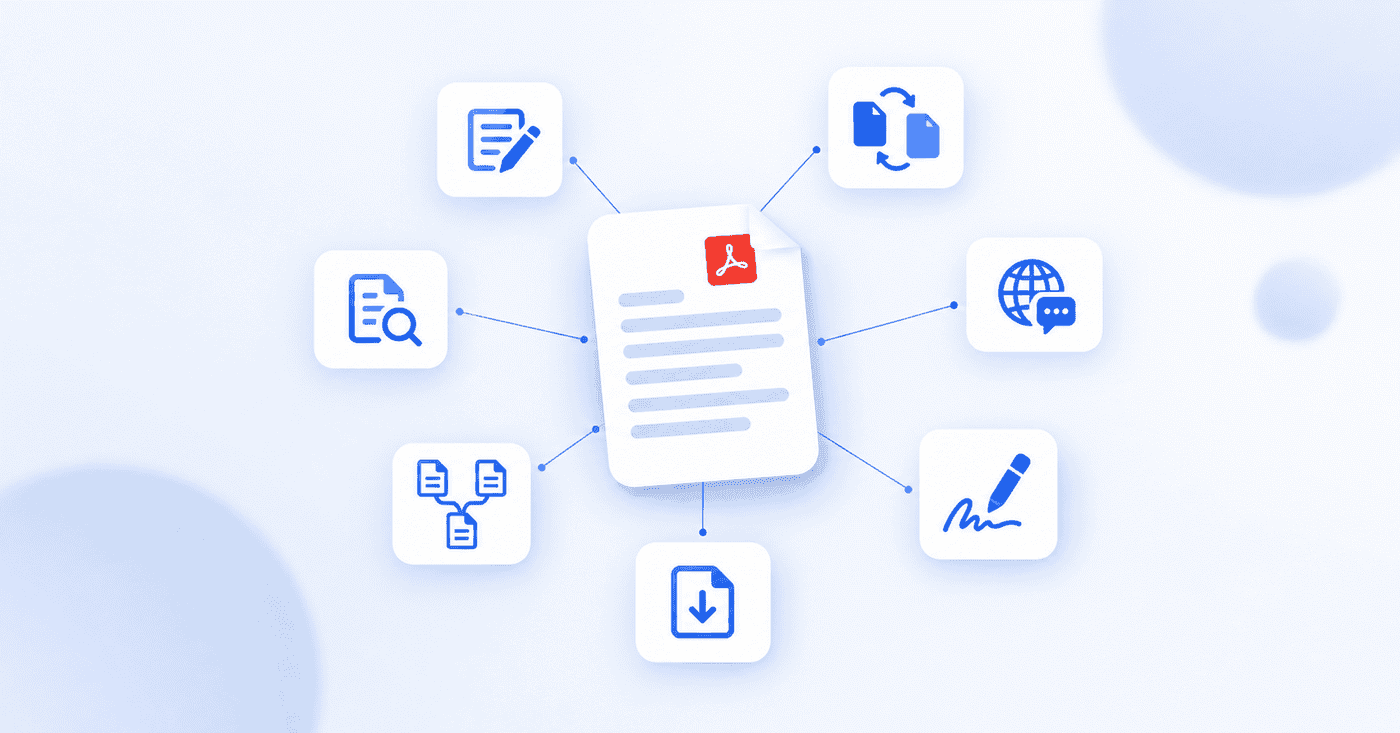
Most lists of free PDF tools rank a handful of apps from best to worst and leave you to work out which one fits your problem. That is backwards. The best tool for editing a sentence is rarely the best tool for shrinking a 40 MB file or signing a contract, and a single app that claims to do everything usually does each thing adequately and nothing well.
So this guide is organized the other way around: by the task you are trying to do. Find your task, and you will find the tool worth reaching for, whether that is a browser tool, a desktop app, or something already built into your computer.
A note before the list. Almost every "free" PDF tool has a paid tier, and the free version usually limits how many files you can process, how large they can be, or how often you can use it. That is normal. None of the recommendations below require payment for the core task described, but it is always worth checking a tool's current limits before you rely on it for something important.
Editing text directly in a PDF
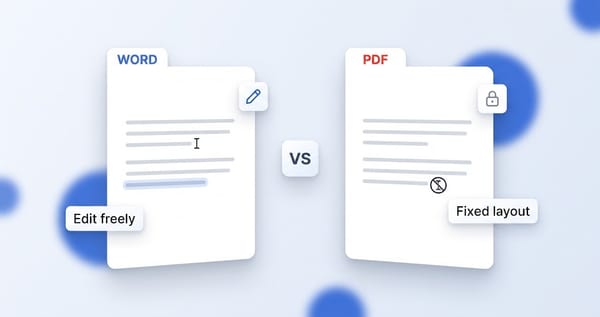
This is the task people most often assume is impossible, and the one that causes the most frustration. A PDF was designed to look the same everywhere, not to be edited, so changing a line of text means working with a tool built specifically to do it.
For editing in the browser without installing anything, PDFSimplified lets you click directly on text and retype it, add images, draw, and rearrange pages, with the page staying where it is as you work. It suits the common case: you have a PDF, you need to change something in it, and you do not want to download software to do it once.
On a Mac, Apple's built-in Preview deserves a mention because it is already there and handles annotation, signing, and page rearrangement well, though it stops short of deep text editing and has no OCR. On Windows, lightweight desktop editors exist that cover quick text changes and markup offline. The right choice comes down to whether you want something installed on one machine or something that works from any device with a browser.
Converting a PDF to something editable
Converting is a different job from editing, and it is where file type matters most. Turning a PDF into Word, PowerPoint, Excel, or an ebook format each has its own quirks, and the quality of the result depends heavily on the tool.
For conversions, PDFEquips covers the common targets, including Word, PowerPoint, EPUB, and RTF, in the browser. The thing to understand about any converter is that a PDF stores how a page looks rather than what its structure means, so converting it back into an editable format always involves some reconstruction. Text-heavy documents convert cleanly; heavily designed pages and multi-column layouts are where results vary, so it is worth checking the output before relying on it. That caveat applies to every converter on the market, free or paid, not just one.
If your PDF is scanned, conversion needs an extra step, which is covered further down.
Translating a PDF into another language
Translation is a task most PDF roundups skip entirely, even though it is common and genuinely hard to do well. The difficulty is not the translation itself but keeping the layout intact afterward, since a translated sentence is rarely the same length as the original and can push a carefully arranged page out of shape.
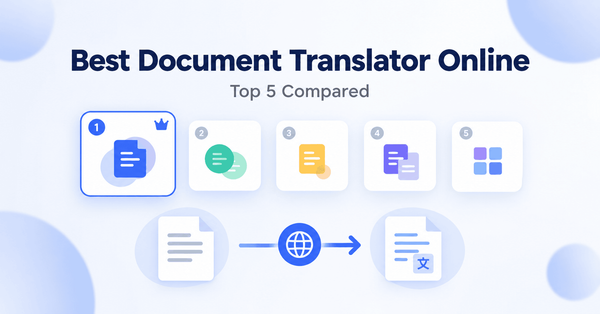
For documents where the formatting has to survive, DocTranslating handles translation while working to preserve the original layout, and lets you pick the translation engine to match the file type. For a quick, rough translation where layout does not matter, a general tool like Google Translate's document upload can be enough. The distinction worth remembering: casual understanding versus a translated document you will actually send to someone.
Signing a PDF
Signing used to be a paid, desktop-only feature, and it has quietly become something almost every free tool now offers. For a one-off signature, the tool you already have open is usually enough. Apple Preview on Mac lets you create and place a signature with no extra software. Adobe's free online Fill and Sign handles the task in the browser, though downloading the signed result requires a free account.
The thing to check is whether you need a simple drawn or typed signature, which every option above provides, or a legally binding digital signature with a certificate, which is a more specialized and usually paid feature.
Reducing PDF file size
Large PDFs are a daily annoyance, most often when an email bounces a file back for being too big. Compression works by reducing the resolution of embedded images and stripping unnecessary data, so the trick is shrinking the file enough without making it look rough.
Most browser-based PDF suites include a compress tool, and for a straightforward size reduction they are interchangeable enough that the right one is whichever you already have open. What matters more than the tool is checking the result: open the compressed file and confirm the images still look acceptable before you send it, because aggressive compression trades quality for size.
Merging, splitting, and rearranging pages
Combining several PDFs into one, pulling a few pages out, or reordering them is the most commoditized PDF task there is. Nearly every free tool does it, and they do it much the same way.
Because this task is so well covered, the deciding factor is privacy rather than features: a merge or split tool either uploads your file to a server or does the work locally in your browser. For anything sensitive, a tool that processes files in the browser without uploading is the safer choice, and open-source desktop options exist for people who prefer nothing to leave their machine at all.
Editing a scanned PDF
A scanned PDF is a special case that trips people up, because it looks like a normal PDF but behaves nothing like one. A scan is a photograph of a page, so there is no real text in it, just an image. Try to edit it, convert it, or translate it, and there is nothing for the tool to work with.
The missing step is OCR, which reads the text off the image and turns it into real, selectable characters. Once a scan has been through OCR, every other task on this list becomes possible. If you are not sure whether a PDF is scanned, try to select a line of text with your cursor; if nothing highlights, it is an image and needs OCR first.
Checking what is hidden inside a PDF
This is the task nobody thinks about until it matters. A PDF carries information you never see on the page: the author name, the software that made it, creation dates, and sometimes data carried over from other files. For anything you are sharing publicly or beyond people you trust, it is worth looking at and often clearing out.
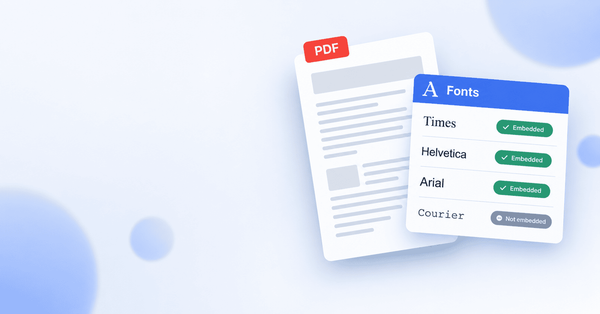
Browser tools can strip this hidden layer, and PDFSimplified has a dedicated metadata remover for exactly that. A related, lesser-known need is identifying the fonts a PDF uses, whether to match a brand or reproduce a layout, which you can check with a font extractor. Neither is something the big roundups mention, but both solve real problems.
How to choose, in one line
The honest summary is that there is no single best free PDF tool, only a best tool for each task. For editing and quick fixes in the browser, reach for a dedicated editor. For converting, use a tool built for the target format and check the result. For translation where layout matters, use a tool made for it. For everything commoditized, like merging or compressing, pick whichever is already open, and favor one that works in your browser when the file is private. Match the tool to the task, and the work gets easier every time.